
MacBook keys not working, sticky or typing twice
A few dead keys or letters that repeat are among the most common MacBook complaints. Before assuming the keyboard is broken, rule out the settings and the simple stuff.
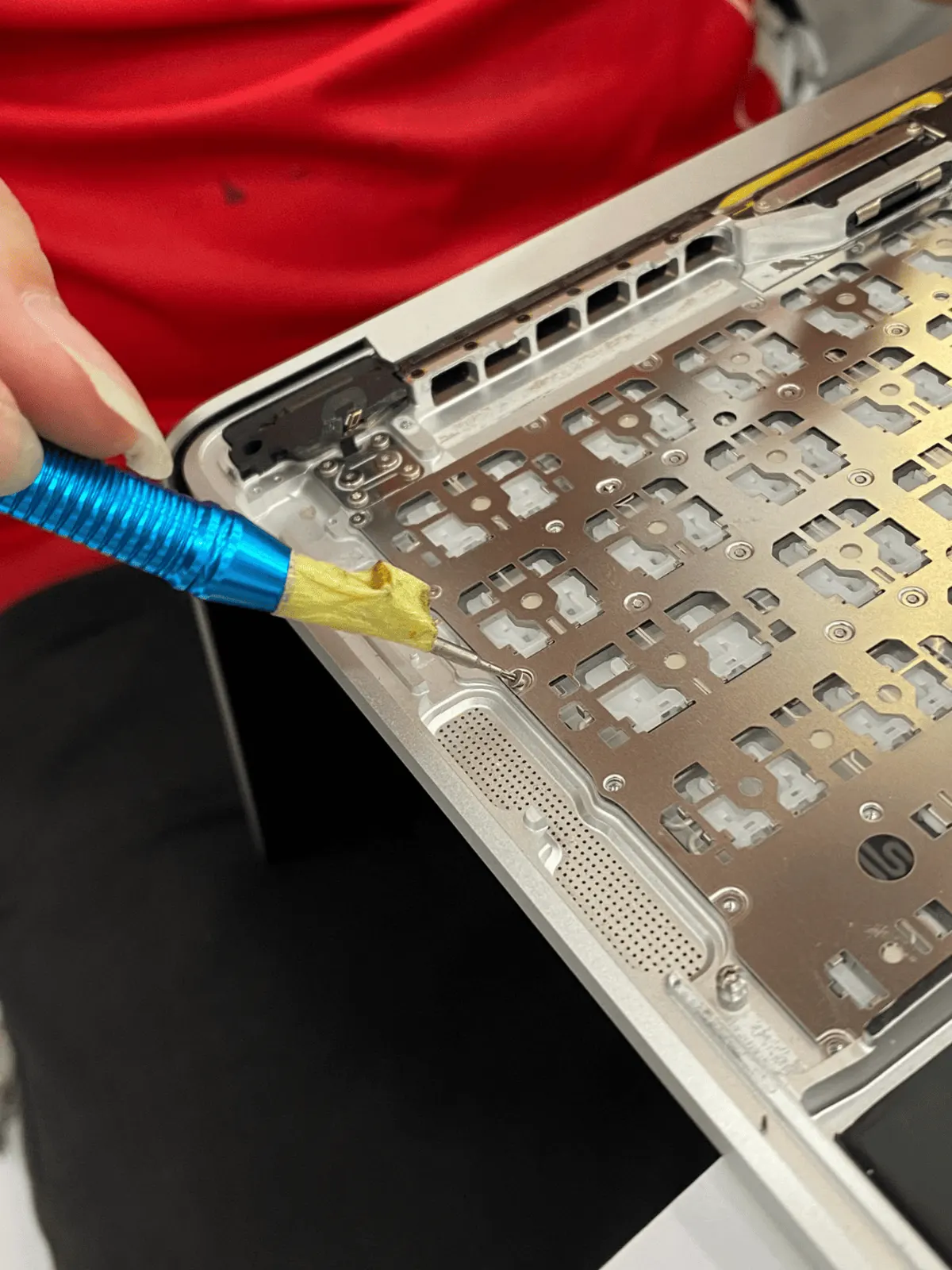
4 checks you can do at home
- 01
Try an external keyboard
If a USB or Bluetooth keyboard types fine, macOS is fine and the problem is the built-in keyboard.
- 02
Check Slow Keys and Mouse Keys
System Settings → Accessibility → Keyboard. Slow Keys makes keys seem unresponsive; Mouse Keys can take over letter keys.
- 03
Tilt and clean
Hold the MacBook at about 75° and use short bursts of compressed air across the affected keys. Don't prise keycaps off — on butterfly keyboards they break easily.
- 04
Check for a liquid spill
If keys stopped working after a spill, stop testing and turn it off. Liquid under the keyboard can reach the board.
If the keyboard stopped working right after liquid got on it, power it off now. Don't keep testing keys — that's how liquid damage spreads.
What it usually turns out to be
Butterfly keyboard mechanism (2016–2019 models)
Dust gets under the shallow keys and they stick or repeat. Apple's keyboard service programme for these models has ended.
How we fix it →Liquid residue under the keys
Sticky, crunchy or dead keys after a drink spill. Needs cleaning, sometimes a new keyboard.
How we fix it →Keyboard connector or board fault
A whole row stops working, or the whole keyboard and trackpad together.
How we fix it →Diagnosis is free. We tell you what we found and the quote before any paid work starts.
Questions
Can you replace just one key?
Sometimes a single keycap or switch can be fixed. When the mechanism underneath is the problem, the whole keyboard usually has to be replaced. We look first and tell you which.
Is my MacBook a butterfly keyboard model?
Most MacBook Pro models from 2016 to 2019, and the MacBook Air from 2018 to 2019, use the butterfly keyboard. Send us the model number from About This Mac and we'll confirm.