
MacBook screen flickering, showing lines or going dark
Display faults look dramatic, but the cause isn't always the panel. A flicker that depends on the lid angle, for example, points at the cable — a different repair from a cracked screen.
4 checks you can do at home
- 01
Connect an external display
If the picture is perfect on a monitor or TV, the graphics are fine and the fault is in the MacBook's own screen or cable.
- 02
Move the lid slowly
Open and close it gradually and watch. Flicker or blackout at a particular angle points at the display cable or backlight.
- 03
Boot into the startup screen
If lines show on the Apple logo too, it's hardware. If they only appear in some apps, update macOS first.
- 04
Look for pressure marks
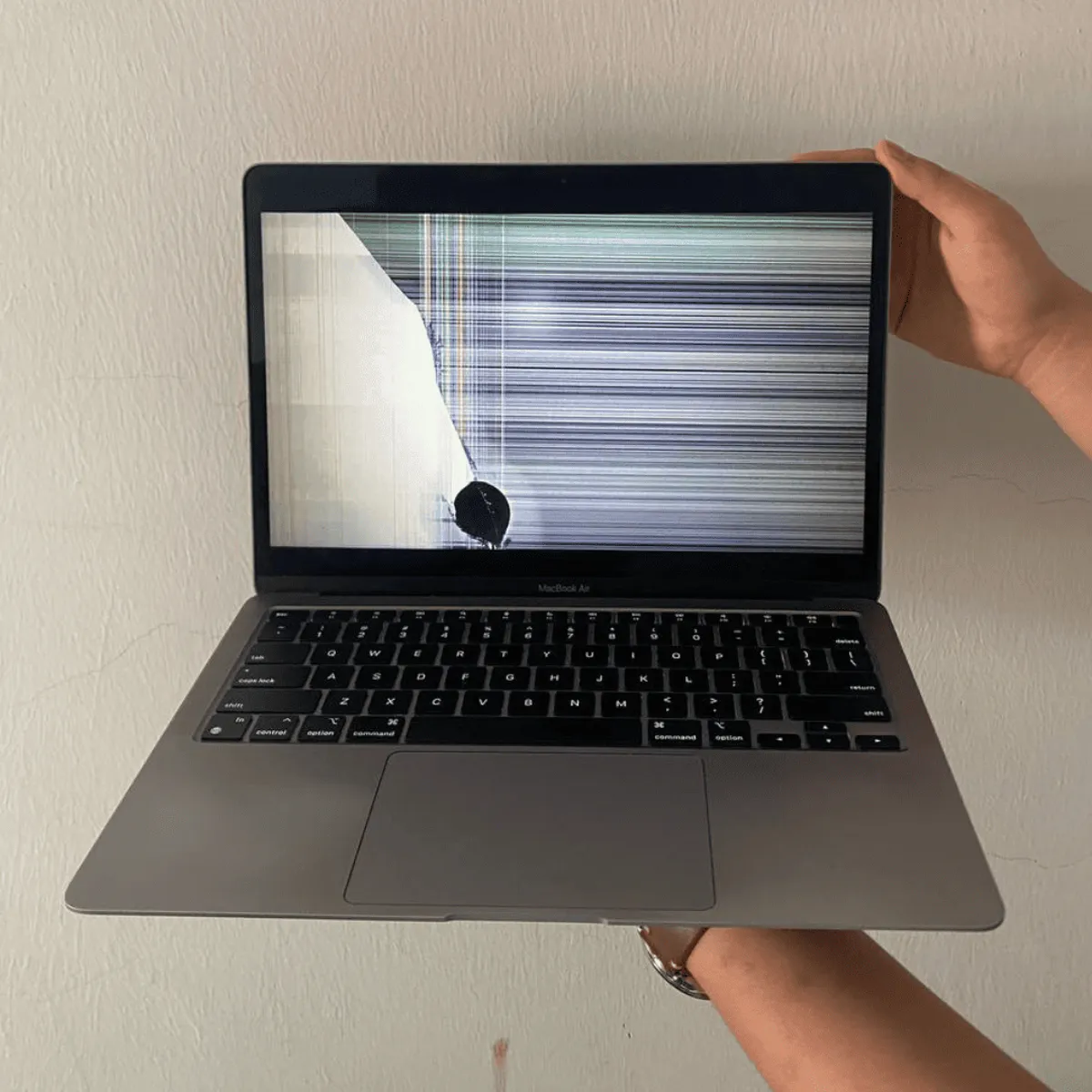
Dark spots or a spider-web pattern under the glass usually mean the panel has been pressed or knocked.
If the screen is cracked, avoid pressing on it and close the lid gently — glass fragments can spread the damage across the panel.
What it usually turns out to be
Cracked or pressure-damaged panel
Lines, ink-like blots or dead areas after a drop or something closed in the lid.
How we fix it →Display cable or backlight fault
Flicker or blackout depending on lid angle. Some 2016 13-inch MacBook Pro models are known for this.
How we fix it →Graphics or board fault
Lines on an external monitor as well, or a machine that won't show anything anywhere.
How we fix it →Diagnosis is free. We tell you what we found and the quote before any paid work starts.
Questions
Can you fix just the cable instead of the whole screen?
When the panel itself is fine and the fault is the cable, that's what we look at first. We test before quoting so you know which one you're paying for.
Will my files be affected?
A display repair doesn't touch the storage. Keep a backup anyway — it's good practice before any repair.